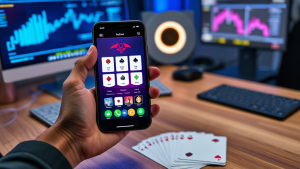
The IN7 Game App on a Phone You Share With Others
One Android phone sits on the kitchen counter, and by evening three different people have unlocked it. A parent checks messages, a teenager plays a round or two, a younger child watches videos. If an app like the In7 game is installed on that device, the question is no longer just “is it safe to install?” but “what does it look like when someone else picks up the phone?” This guide walks through shared-device scenarios, what stays visible, and how to clean up between users.
Shared phones are common in households, and Android handles them in a few different ways. Understanding those options helps you decide whether the IN7 Game app belongs on the family device at all, or whether it should live on a personal handset instead.
Why shared phones change how you think about any app
On a personal phone, an app is a private tool. On a shared phone, every icon, notification and saved session is visible to whoever unlocks the screen next. That shift matters for any download, including the IN7 Game app, because the app’s presence and activity become part of the household’s shared space.
Before installing anything, it helps to know how the IN7 Game app is distributed and what it expects from the device. The In7 game is an Android app that users typically install from an APK file rather than a store listing, so the install and permission steps are part of the decision. Playin7Game is an independent informational site that explains those steps, permissions and safety checks, which is useful when several people need to agree on what gets installed.
The practical rule is simple: treat every shared install as a household decision, not a personal one. If one person installs the app, everyone who uses the phone lives with the result.
Scenario one: a parent and a teenager share one handset
This is the most common arrangement. The parent owns the phone, the teenager uses it for games and messaging, and both unlock it with the same PIN or fingerprint. In this setup, the IN7 Game app usually ends up in the main app drawer where anyone can see and open it.
What stays visible on the home screen
The app icon, its name and any notifications are visible to every user. If the app shows a login screen or a saved session, the next person who taps the icon may land inside an account they do not own. That is a privacy issue before it is a gaming issue.
Keeping the install deliberate
Agree on who installs the app and who can remove it. A short conversation about the APK source, the permissions requested during install and the reason for the download prevents later friction. Install from a source you can name, and note the date so the household knows how long the app has been on the device.
If the teenager wants the app and the parent does not, a separate user profile is usually the cleanest answer, covered below.
Scenario two: a younger child uses the same phone
When a younger child borrows the phone, the concern shifts from privacy to accidental taps. A child scrolling the app drawer can open anything, including the IN7 Game app, and may not understand what they are looking at.
Two habits help here. First, keep the app out of the first home-screen page so it is not the first thing a child sees. Second, use Android’s built-in parental controls or a restricted profile so the app drawer itself is limited. These are device settings, not app settings, and they work for any installed app.
Never leave a logged-in session open on a phone a child can reach. Log out or close the app when you hand the phone over, and check the screen before it goes back into a pocket or bag.
Scenario three: the phone is passed around guests and visitors
Some households hand a phone to a visitor to make a call, check a map or look at photos. In that moment, the guest can see the full app drawer, including the IN7 Game app and anything else installed.
The fix is not complicated. Android’s guest mode or a secondary user profile hides the owner’s apps and data from the guest session. When the guest hands the phone back, the owner’s profile returns exactly as it was. This is the most reliable way to keep a shared handset tidy without uninstalling anything.
If guest mode is not available on the device, a simple screen lock with a PIN the guest does not know, combined with handing over the phone already unlocked on a specific app, limits exposure. Guest sessions are temporary by design, so nothing installed in the owner profile leaks into them.
Profiles, app visibility and cleanup: the practical setup
Android offers a few tools that directly address shared-device concerns. They are worth setting up once, before the IN7 Game app or any other download lands on the phone.
Using multiple user profiles
Most modern Android phones support more than one user. Each user gets a separate home screen, separate app list and separate app data. Installing the IN7 Game app in one profile does not make it visible in another. This is the strongest separation Android offers on a single device.
Hiding versus removing an app
Some launchers let you hide an app icon, which removes it from the drawer without uninstalling it. Hiding is convenient but not private: the app still exists, still updates, and can still send notifications unless those are turned off separately. If the goal is to keep the app away from other users, a separate profile is more reliable than hiding.
Cleaning up after someone else uses the device
When a shared session ends, a short cleanup routine keeps things predictable:
- Close the app rather than leaving it in the background.
- Log out of any account inside the app if one was used.
- Clear notifications from the lock screen and the shade.
- Check that the guest or secondary profile has been exited.
- Confirm the app is still in the profile where it belongs.
If the app is no longer wanted on the shared phone, uninstalling is the cleanest step. Removing an APK-installed app works the same way as removing a store app: long-press the icon and choose uninstall, or use Settings, then Apps. Uninstalling also removes the app’s local data, so any saved session or preferences go with it.
Questions families ask about the IN7 Game app on a shared phone
Can other users on the same phone see the IN7 Game app?
Only if it is installed in the profile they are using. Apps installed in one Android user profile are not visible in another. On a single-profile phone, everyone sees the same app drawer, so the app is visible to all users.
Does uninstalling the app remove it for everyone?
Uninstalling removes the app from the profile where you perform the uninstall. If the app was installed in a second profile, remove it there as well, or delete that profile entirely if it is no longer needed.
Is it safe to install an APK on a phone several people use?
Safety depends on the source and the permissions requested during install. Review the permission list before confirming, install only from a source you can identify, and keep the app updated. On a shared phone, also agree with the other users about who installs and who removes apps.
What is the quickest way to keep the app private on a shared device?
Put the IN7 Game app in a separate user profile and switch back to the main profile when you are done. That single step hides the app, its data and its notifications from everyone else using the phone.
Shared phones work best when the household agrees on a few simple rules: one profile per person where possible, a named source for every APK, a logout habit after use, and a quick cleanup before the phone changes hands. Set those up once, and an app like the IN7 Game app becomes just another managed item on a device that several people can use without surprises.